How to Use Clickfree Pro: Complete Setup Guide
New Clickfree Pro in hand? This step-by-step guide takes you from unboxing to your first complete backup — plus how to free up phone space safely, use it on a computer, and scan old prints.
Before you start
- Update your phone (iOS 13+ on iPhone 6s or newer; Android 8.0+).
- Connect to Wi-Fi — you’ll need internet to create the free account.
- Charge your phone or keep it on a charger for the first backup.
- iPhone users with iCloud “Optimize Storage” on: let full-size originals download first, since Clickfree copies what’s on the phone.
Set up on iPhone or iPad
- Open the App Store, search “Clickfree,” and install the free app.
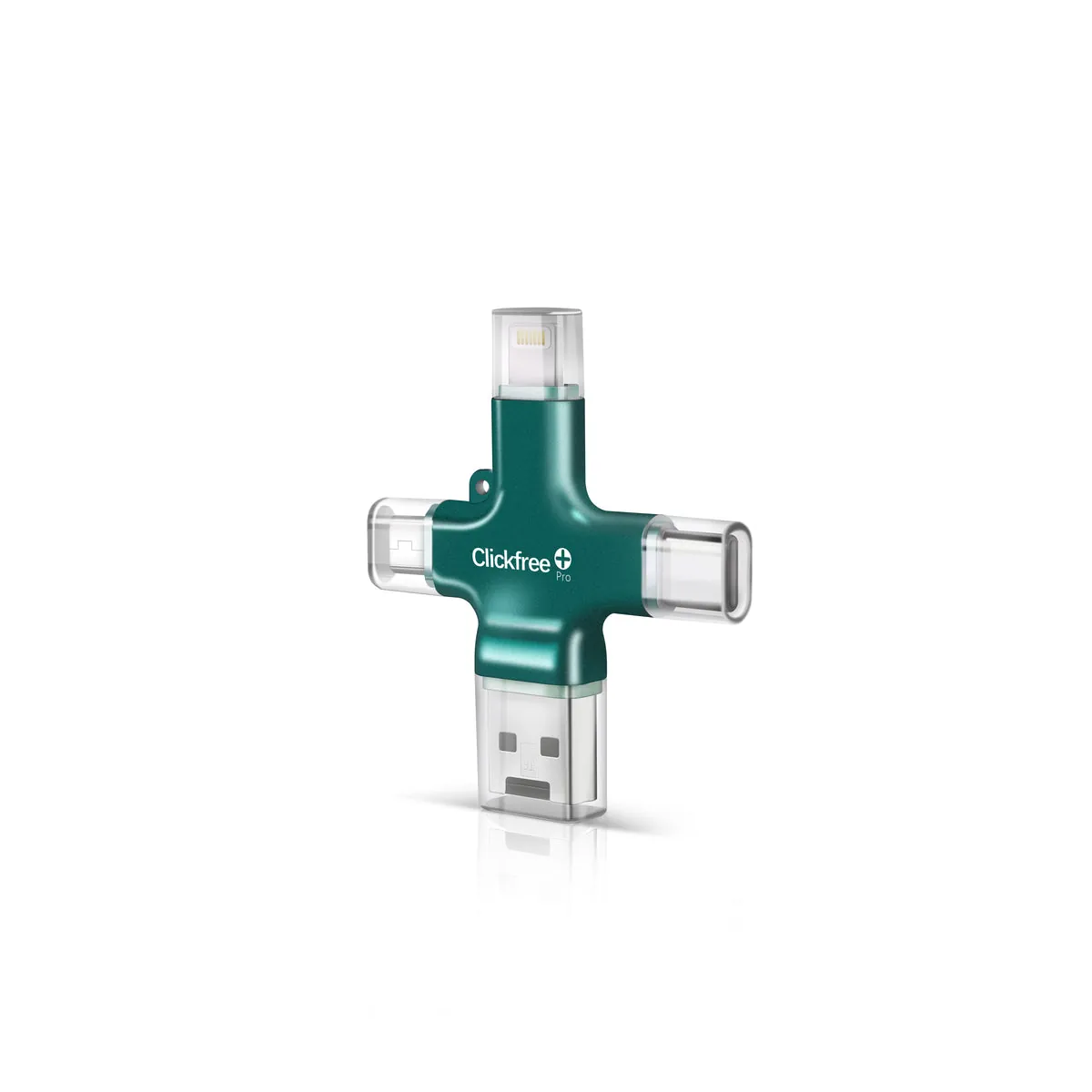
- Pick the right tip: Lightning for iPhone 14 and earlier, USB-C for iPhone 15 and newer (and newer iPads).
- Plug in. When iOS asks whether the app can communicate with the accessory, tap Allow.
- Grant photo and contacts access when asked — choose Allow Full Access so everything can be backed up.
- Create your free account.
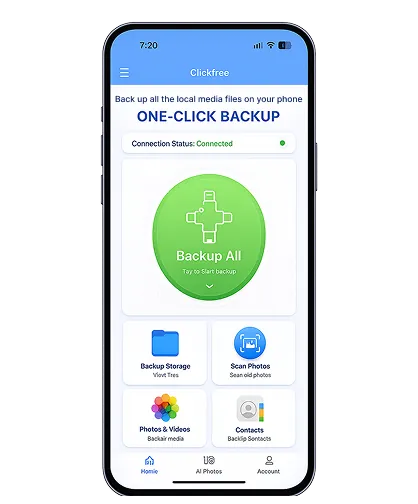
- Tap Backup All and leave the app open until it finishes.
Set up on Android
- Install the free Clickfree app from Google Play.
- Use the USB-C tip (most phones since ~2017) or Micro-USB (older phones/tablets).
- Plug in and allow the app to access the USB device when Android asks.
- Allow access to photos, videos and contacts.
- Create your account and tap Backup All.
More Android tips in Clickfree for Android.
Use on Mac, Windows or Chromebook
Use the USB-A plug (or USB-C on many Chromebooks). Clickfree opens like a normal USB drive, so you can drag files on or off. Clickfree also offers Mac and Windows apps. This is the easiest way to make a second copy of your backup on your computer.
Free up phone space safely
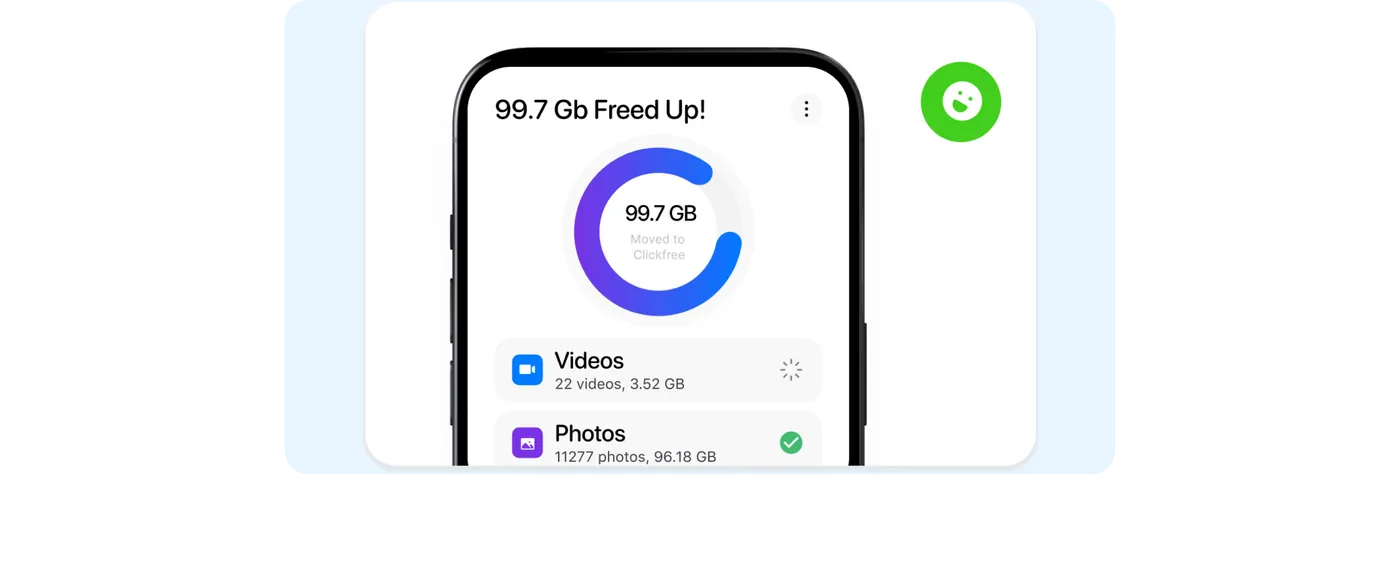
- After the backup finishes, open View Backup Storage in the app and spot-check some recent photos and videos.
- Delete photos from your phone in batches (oldest first).
- On iPhone, empty Recently Deleted in the Photos app — otherwise space isn’t freed for 30 days.
- Next time, plug in and tap Backup All again; only new items are copied.
Extras
Shoot straight to Clickfree: use the camera in the Clickfree app to save new photos and videos to the device instead of the phone. Scan prints: use the scan feature to photograph old prints — see our scanning guide.
Frequently asked questions
Do I need a computer to use Clickfree?
No. It plugs straight into your phone or tablet; a computer is optional.
Do I need internet?
Only to create the free account during setup.