Home › Clickfree for Android
Clickfree for Android: Does It Work & How to Set It Up
We may earn a commission if you buy through links on this page, at no extra cost to you. Learn more.
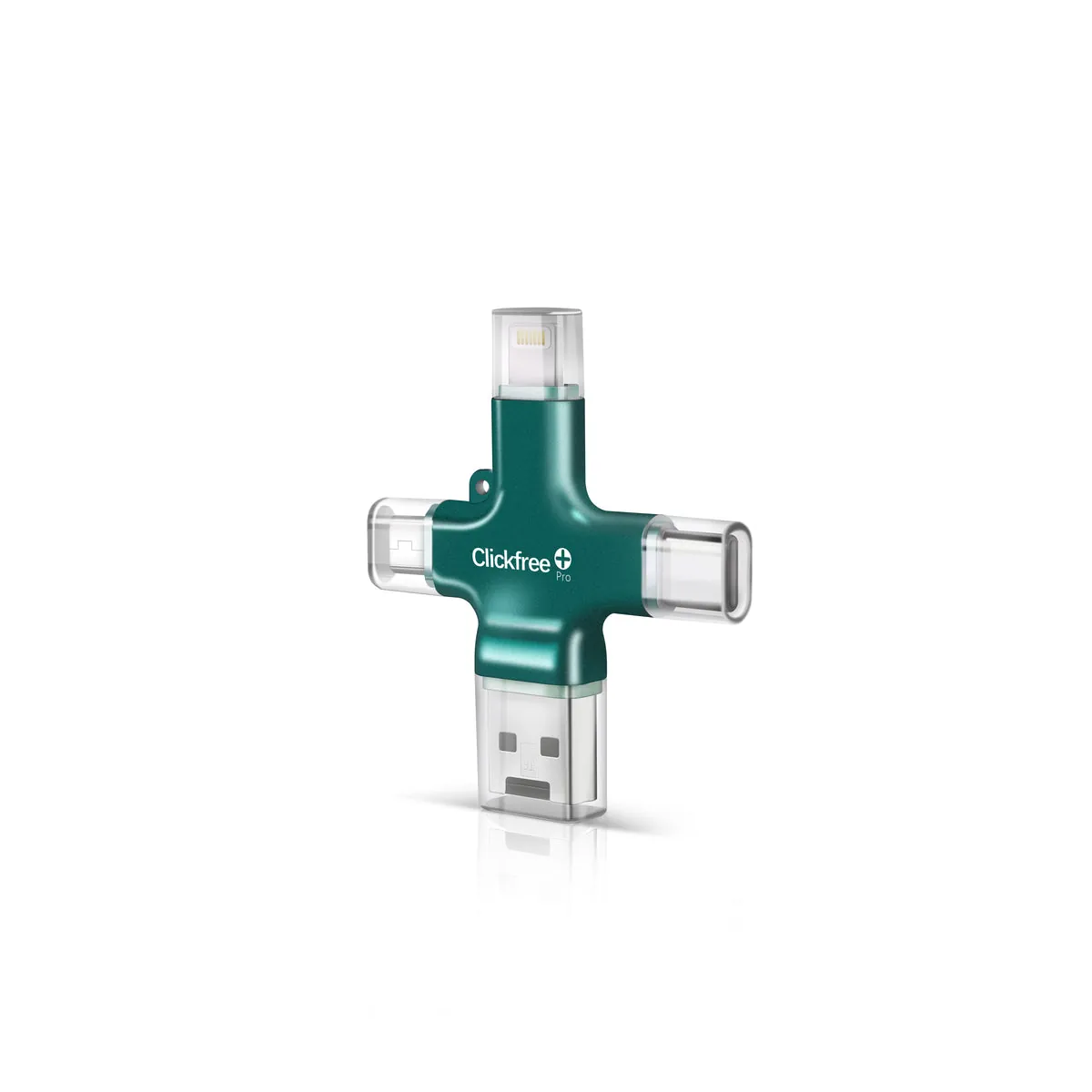
Yes, Clickfree Pro works with Android. Here’s what you need, how to set it up, and a few Android-specific tips that make backups smoother.
| Requirement | Details |
|---|---|
| Android version | 8.0 or later |
| Connector | USB-C (most phones since ~2017) or Micro-USB (older) |
| App | Free Clickfree app on Google Play |
| Backs up | Photos, videos, contacts |
How to set it up
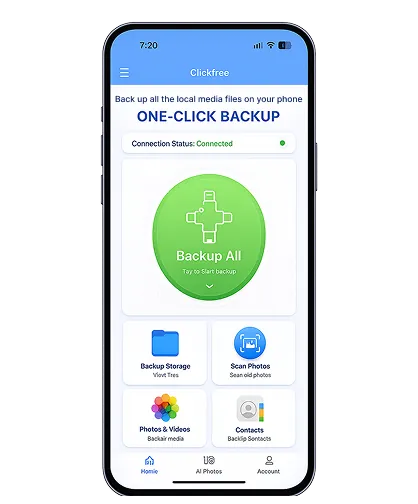
- Install the Clickfree app from Google Play.
- Plug in using the USB-C or Micro-USB tip.
- Allow the app to access the USB device and your photos/videos/contacts.
- Create a free account (internet needed).
- Tap Backup All.
Android tips
- Google Photos users: if you’ve deleted photos from the phone after Google backed them up, those exist only in the cloud. Clickfree backs up what’s on the phone.
- Battery optimization can pause long backups — exclude the Clickfree app during the first backup.
- Tablets: Clickfree works with Android tablets too, using the same connectors.
- Samsung, Pixel, Motorola and others follow the same steps; only the permission screens look different.
Perfect for mixed iPhone + Android families
The big advantage over iPhone-only drives is that one Clickfree covers everyone. See Clickfree vs SanDisk iXpand and Clickfree vs Google Photos.
Check Today’s Price on Clickfree.com →
Official store · Free US shipping · 30-day returns
Frequently asked questions
Does Clickfree work with Samsung Galaxy?
Yes, on Android 8.0 or later using the USB-C tip and the Google Play app.